
Connect Hanare to Meta Muse
The real screens, from top to bottom.
- Muse (https://muse.ai/) open in a browser on a computer (Chrome or similar). Once connected, the phone app works too.
- The email address and password you signed up to Hanare with (or your Google account, if you signed up with Google)
- Muse is only available in the countries and regions where Meta offers it
Tap a screenshot to see it larger.
A. Connect Hanare to Muse
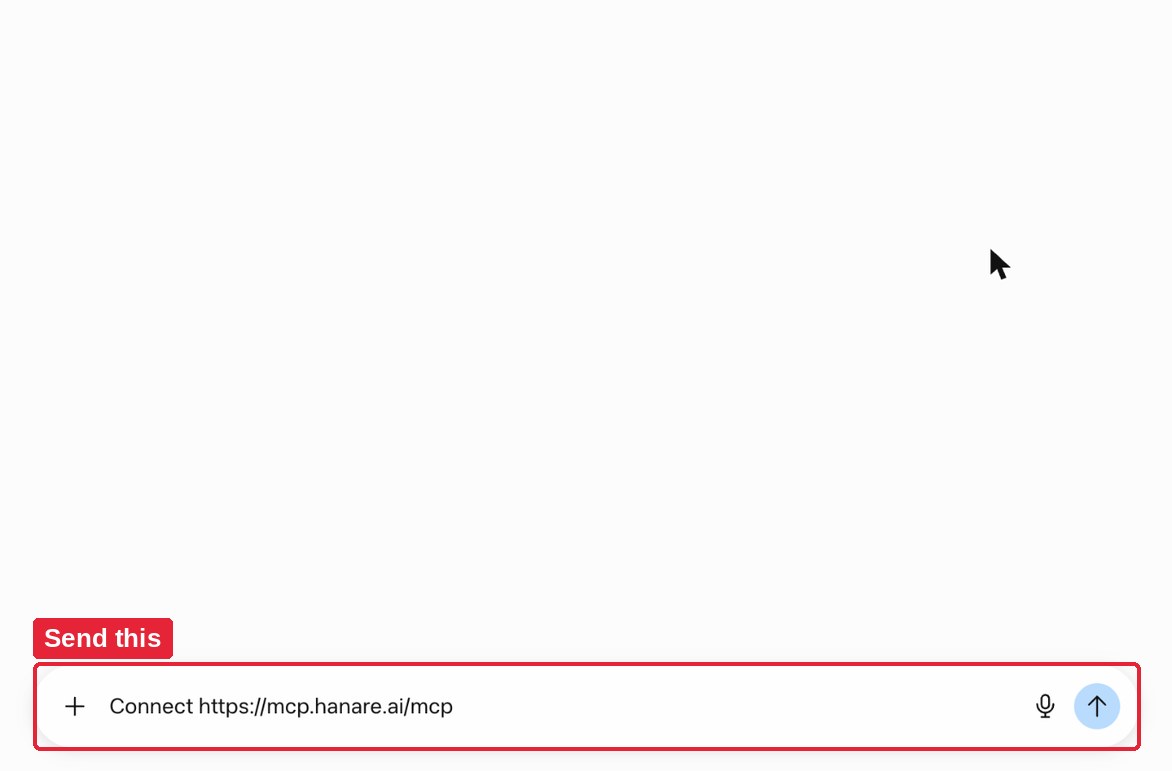
Ask Muse in the chat to connect Hanare
Send this.
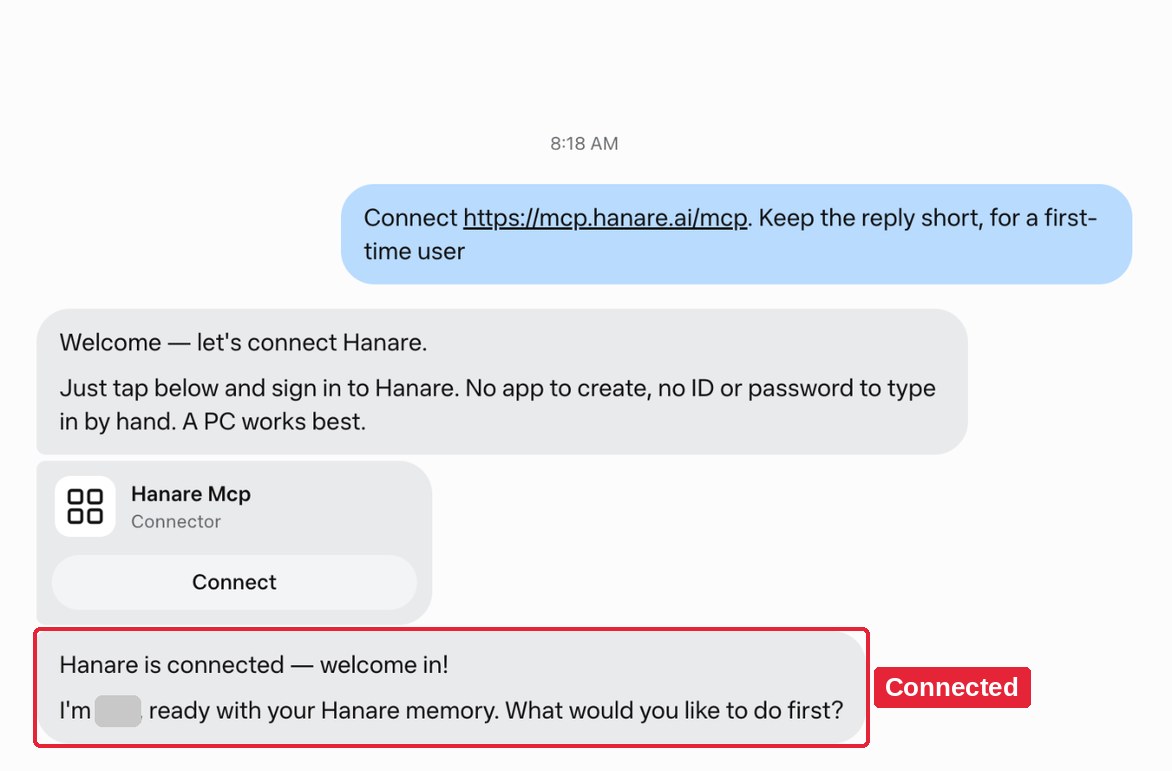
Connect https://mcp.hanare.ai/mcpThere are no Client ID or Client Secret fields. Muse registers Hanare as a custom connector by itself.
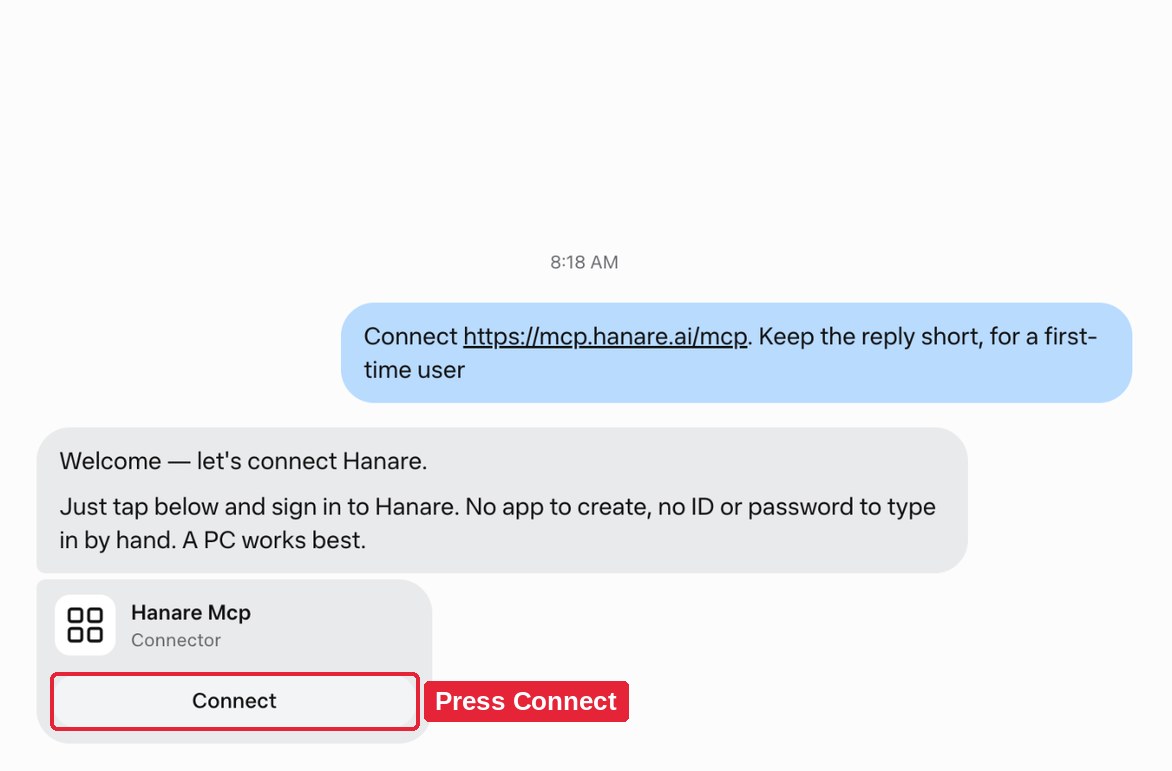
Press “Connect” on the card in the reply
Under Muse's reply, a Hanare card (Connector) with a “Connect” button appears. Pressing it opens Meta's confirmation (“Custom connector”); press “Connect” again.
In the screenshot, “Keep the reply short, for a first-time user” was added to the text of step 1. The wording of the reply differs from person to person.
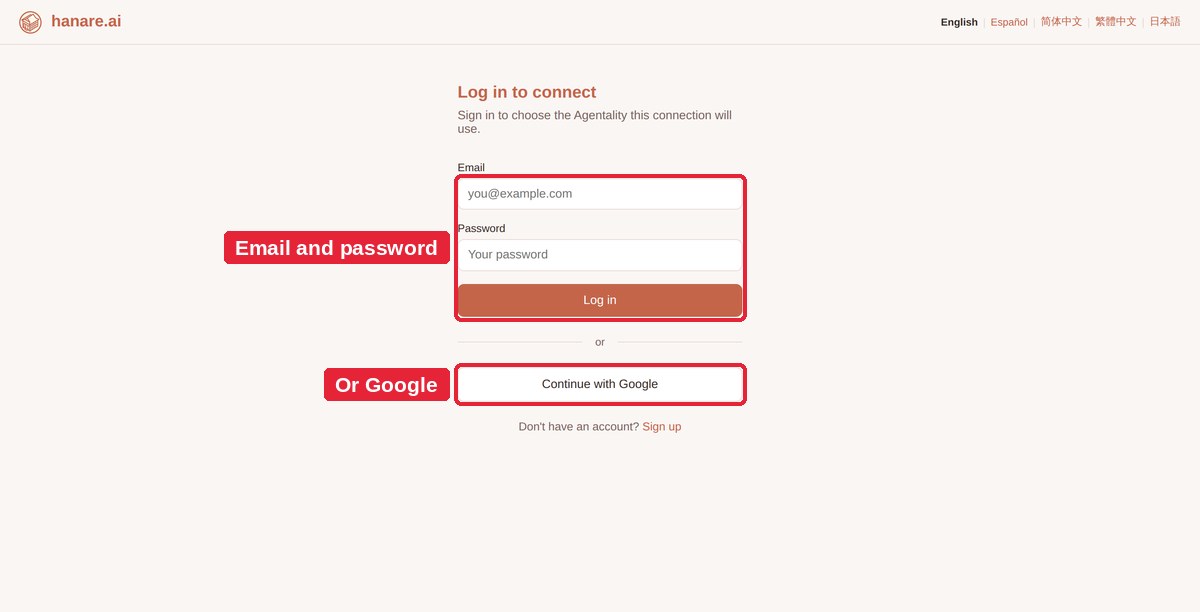
B. Log in to Hanare and allow
This is where people get stuck.
Log in on the “Log in to connect” page
The Hanare login page opens. If the heading says “Log in to connect”, you are on the right page. Log in the same way you signed up to Hanare.
If you are already logged in to Hanare in this browser, this page is skipped and you go straight to step 4. If you see Hanare's home page (“Welcome, …”), that is a different entrance: go back to Muse and start again from the button in step 2.
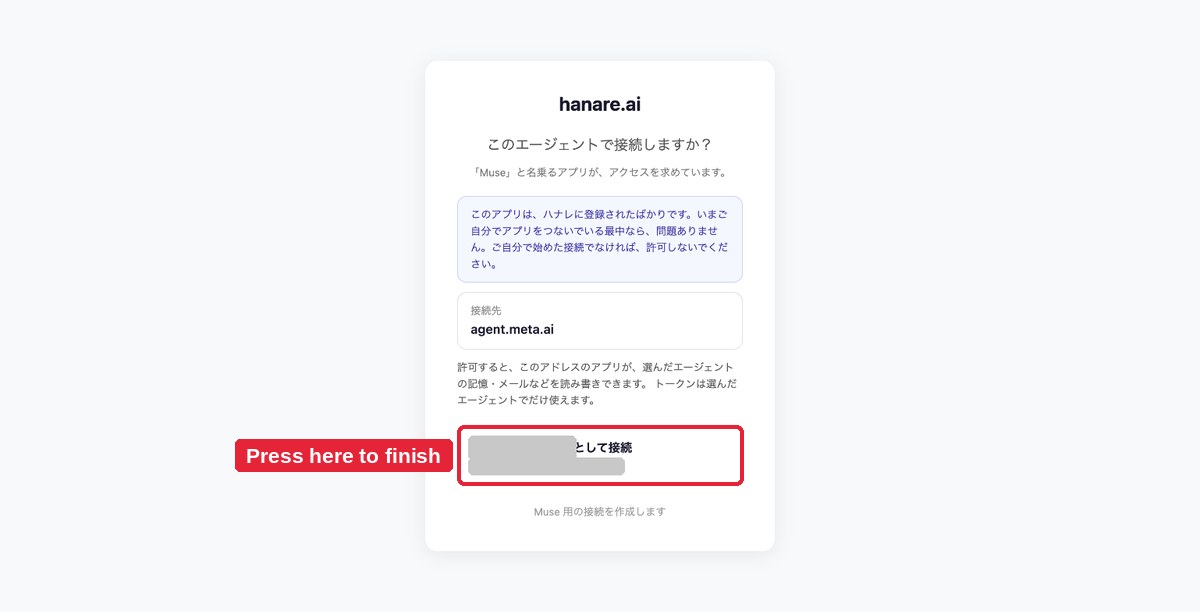
Press “Connect as (your agent's name)”
The page asks “Connect with this agent?”. Check that it connects to agent.meta.ai, then press the button below.
This Hanare page is shown in your browser's language; the screenshot is the Japanese one. A blue box says the app was just registered with Hanare: if you are connecting Muse yourself right now, it is fine to go on. The name and address are grayed out in the screenshot; your agent's name appears on the real page.
Back in Muse, the connection is done
You are back in Muse's chat, and it replies that Hanare is connected. Muse may also try Hanare's tools and tell you the result.
The name in the reply is grayed out in the screenshot.
C. Make it work
Add Hanare's sentence to SOUL.md
Muse has no custom instructions field. Instead, the sentence goes into SOUL.md, the file that holds Muse's persona. Send this in the chat; when Muse says it added it to SOUL.md, you are done.
Add the following text to SOUL.md: My memory and persona live in Hanare. At the start of a conversation call hanare_whoami to load who you are, search Hanare memory before answering, and save anything worth remembering with hanare_memory_commit.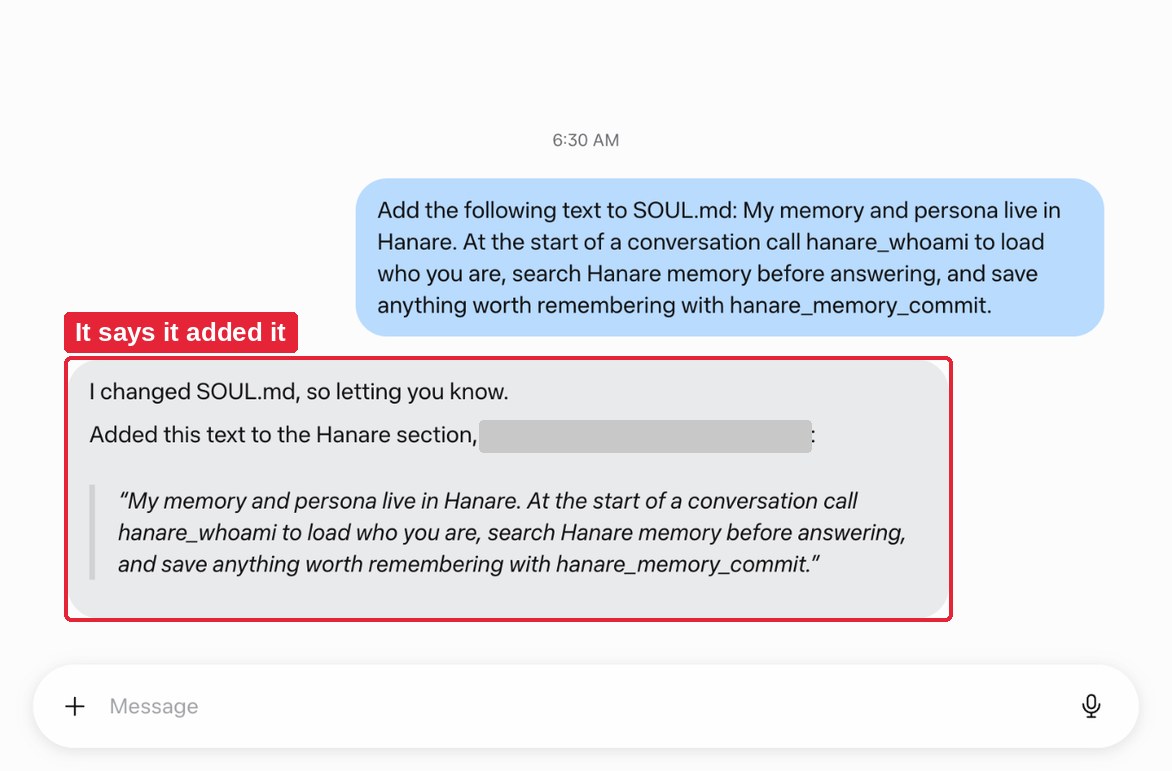
Talk to it in a new chat
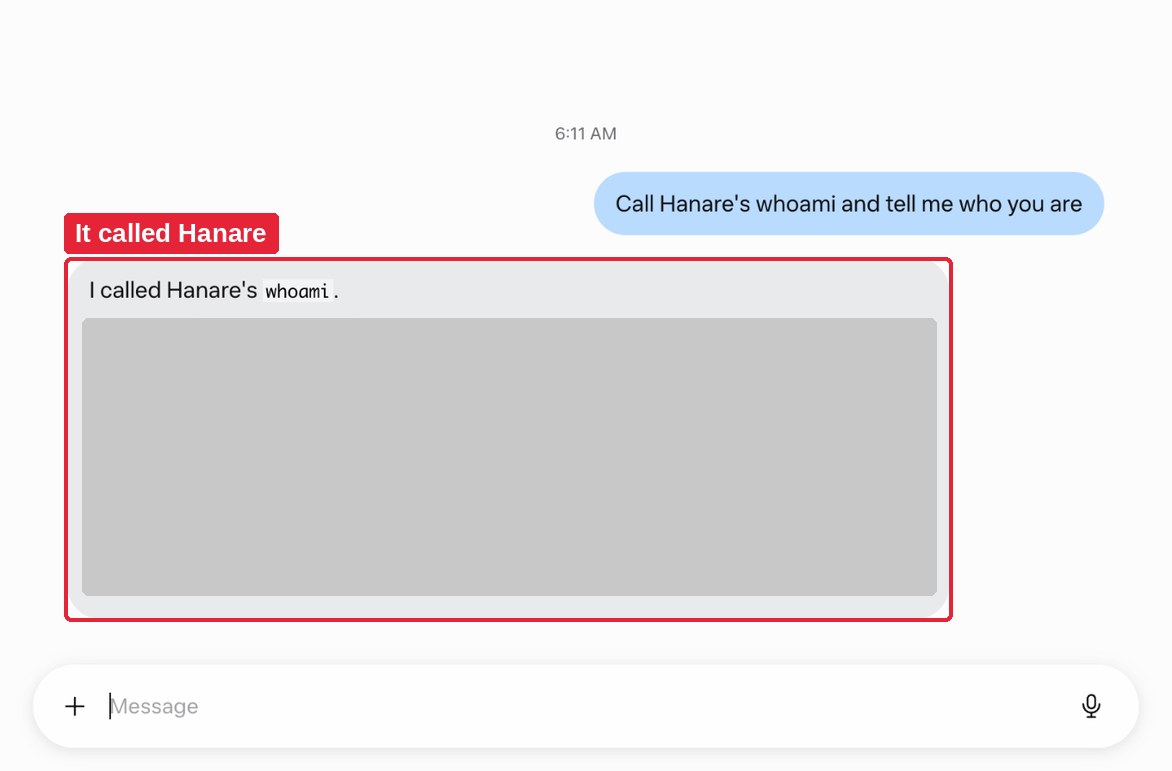
Open a new chat and say, for example:
Call Hanare's whoami and tell me who you areThe reply may come in the language of your Muse assistant's persona rather than the language you asked in. The name and other details in the reply are grayed out in the screenshot.
Once connected
If the agent tells you its name, it is connected. Muse also has its own memory. Keep the sentence in SOUL.md as it is, so that memories are saved in Hanare.
If something goes wrong
- It is connected, but does not use Hanare's memory
- Check that the sentence is in SOUL.md (step 6). Without it, Muse does not call hanare_whoami.
- After switching the display language, text shows in the wrong language
- After switching Muse's display language, reload the page before sending. Without a reload, the chat box hint and even your sent message may still show in the previous language.
- You want to remove the Hanare link or start over
- Open “≡” at the bottom left, go to the settings, then to the connectors and their list of linked ones. Open Hanare there, press “Disconnect”, and confirm in the window that appears. To start over, go on from step 1.
- Hanare's home page (“Welcome”) appears
- You opened app.hanare.ai directly. Go back to the Muse tab and start again from the button in step 2.
- Cannot log in, or your usual agent does not appear
- Log in the same way you signed up to Hanare (email and password, or Google). Logging in with another account connects that account's agent.
- Doing it on a phone
- Make the first connection in a browser on a computer.
The screens were captured in November 2026. Muse updates can change the names and places of its buttons.