
Connect Hanare to ChatGPT
The real screens, from top to bottom.
- chatgpt.com open in a browser on a computer (Chrome or similar)
- The email address and password you signed up to Hanare with (or your Google account, if you signed up with Google)
Tap a screenshot to see it larger.
A. Add Hanare to ChatGPT
Open Plugins and press “Add” at the top right
This address opens the Plugins page.
https://chatgpt.com/plugins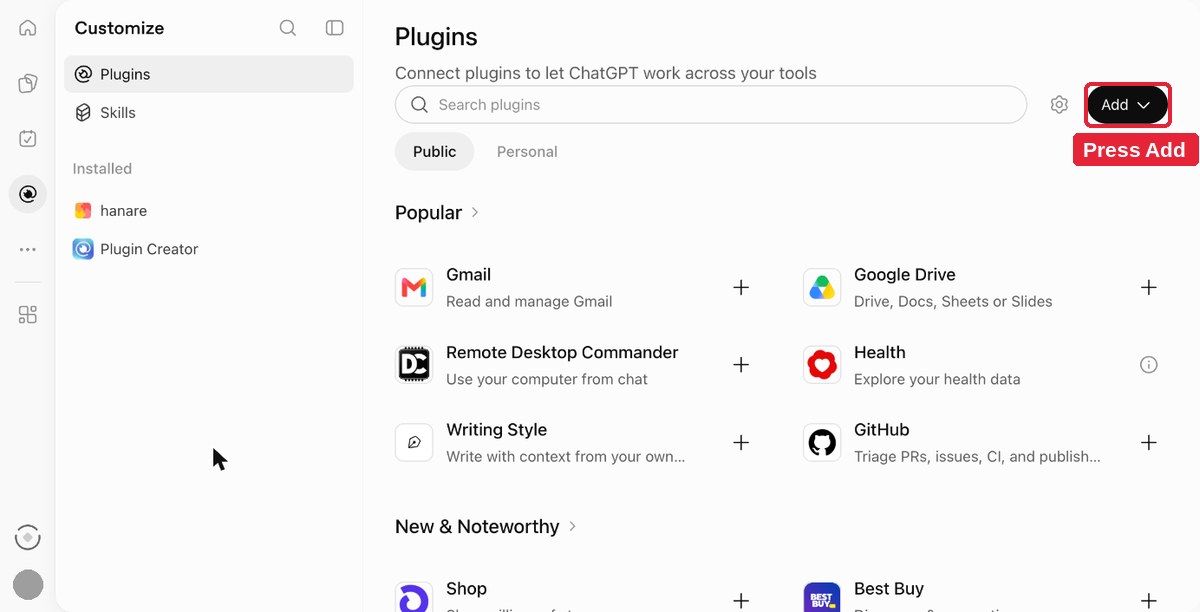
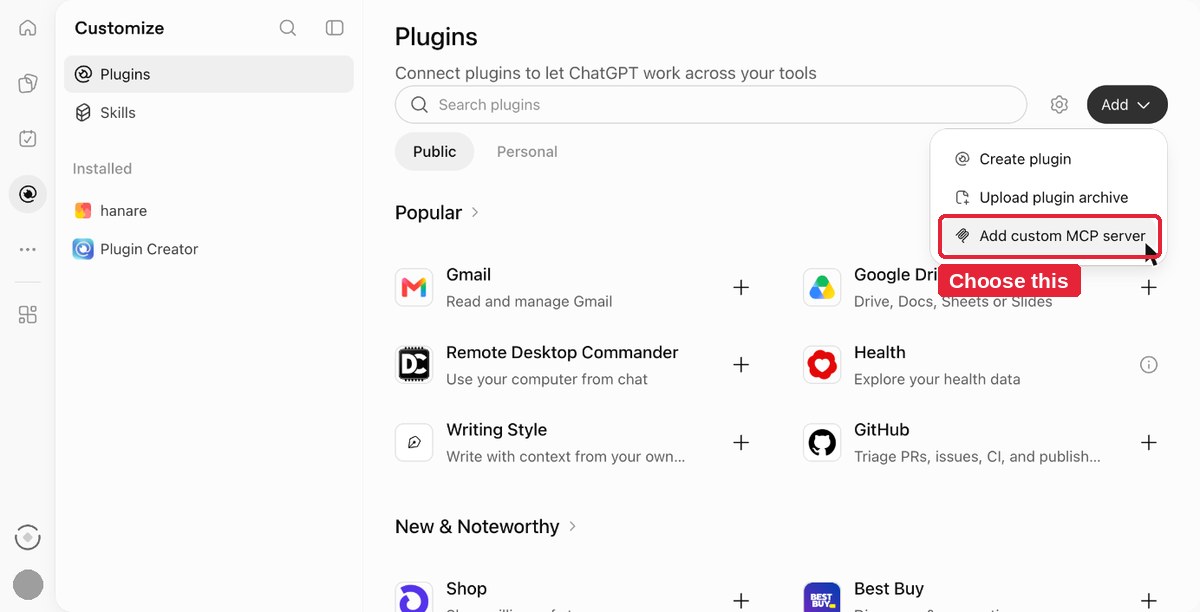
Choose “Add custom MCP server”
It is at the bottom of the menu.
Enter the name and the URL
Type “Hanare” as the Name, and paste this URL into Server URL under Connection. Leave Authentication on “OAuth”.
https://mcp.hanare.ai/mcp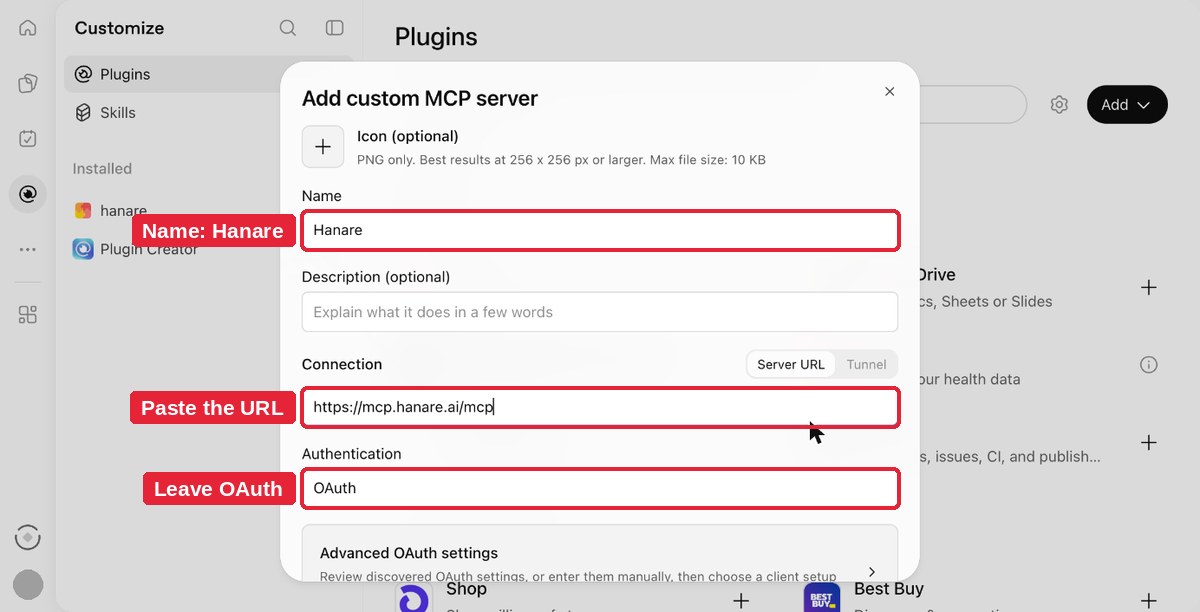
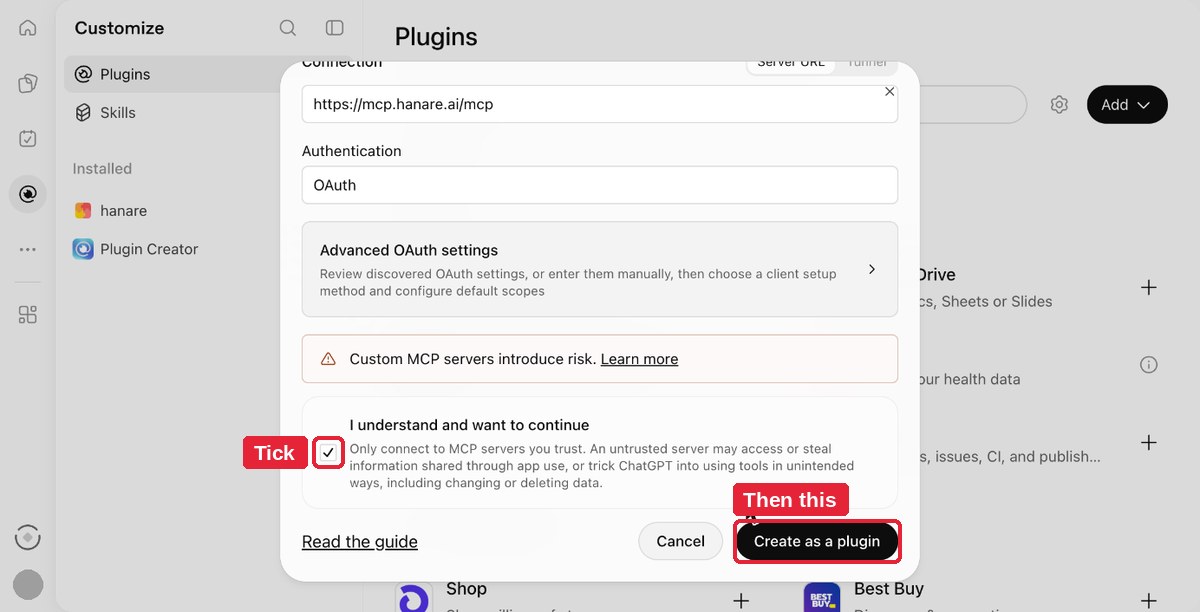
Scroll down, tick the box and press “Create as a plugin”
The create button stays off until you tick “I understand and want to continue”. After you press it, it loads for about 10 seconds. Wait.
B. Log in to Hanare and allow
This is where people get stuck.
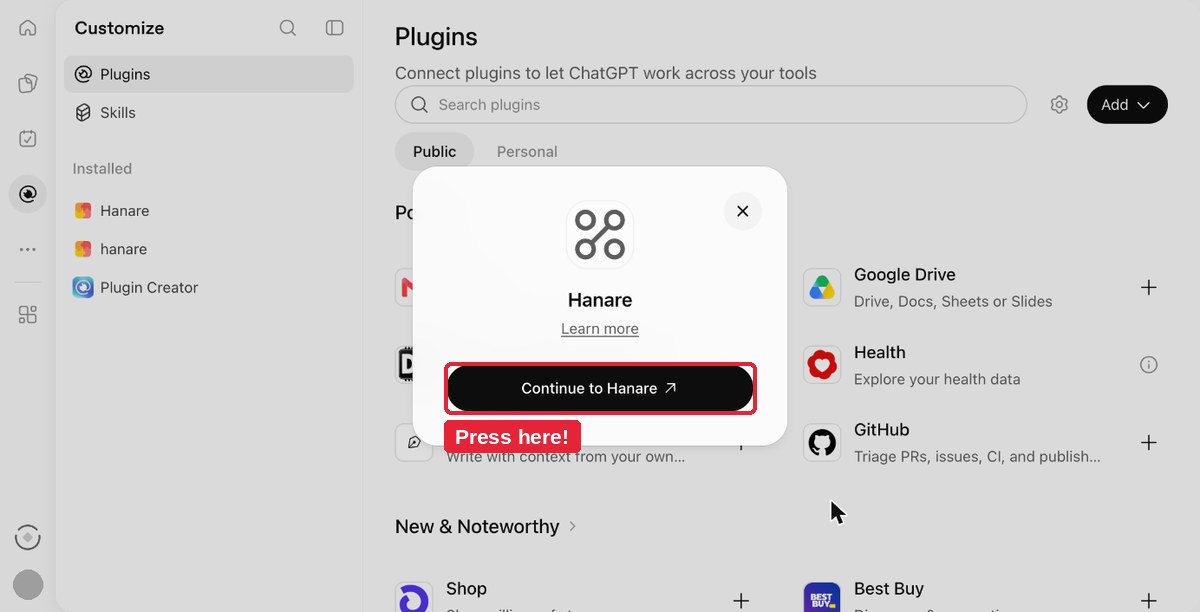
Press “Continue to Hanare”
When it is created, a small window appears in the middle of the screen. Press this button and the Hanare login page opens.
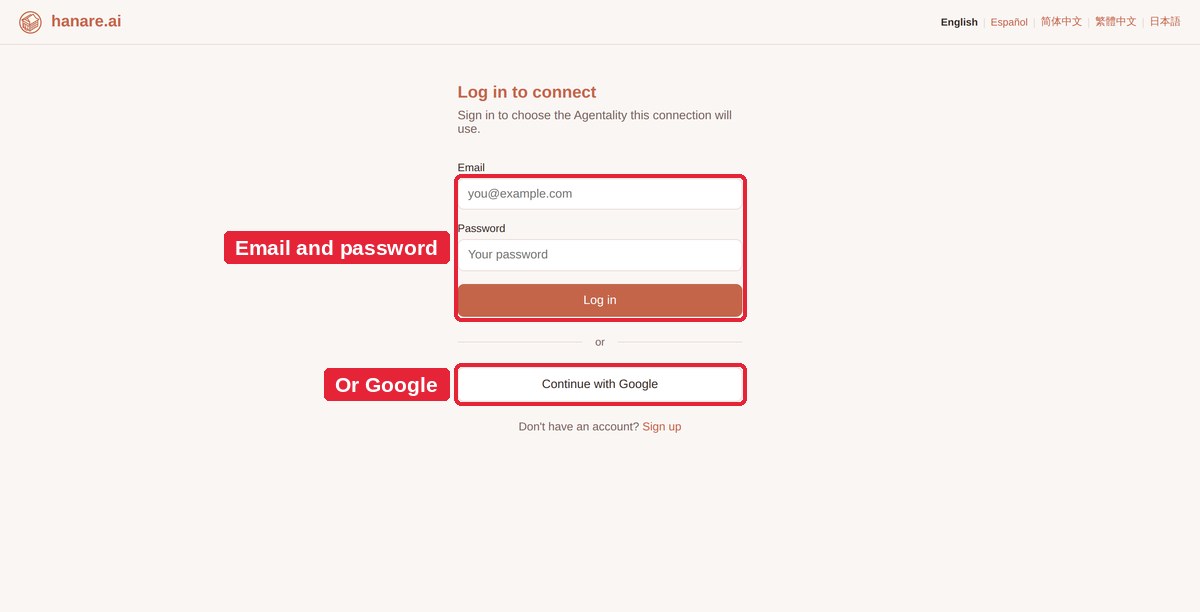
Log in on the “Log in to connect” page
If the heading says “Log in to connect”, you are on the right page. Log in the same way you signed up to Hanare.
If you see the Hanare home page with “Welcome, …”, you came in another way. Go back to ChatGPT and start again from step 5.
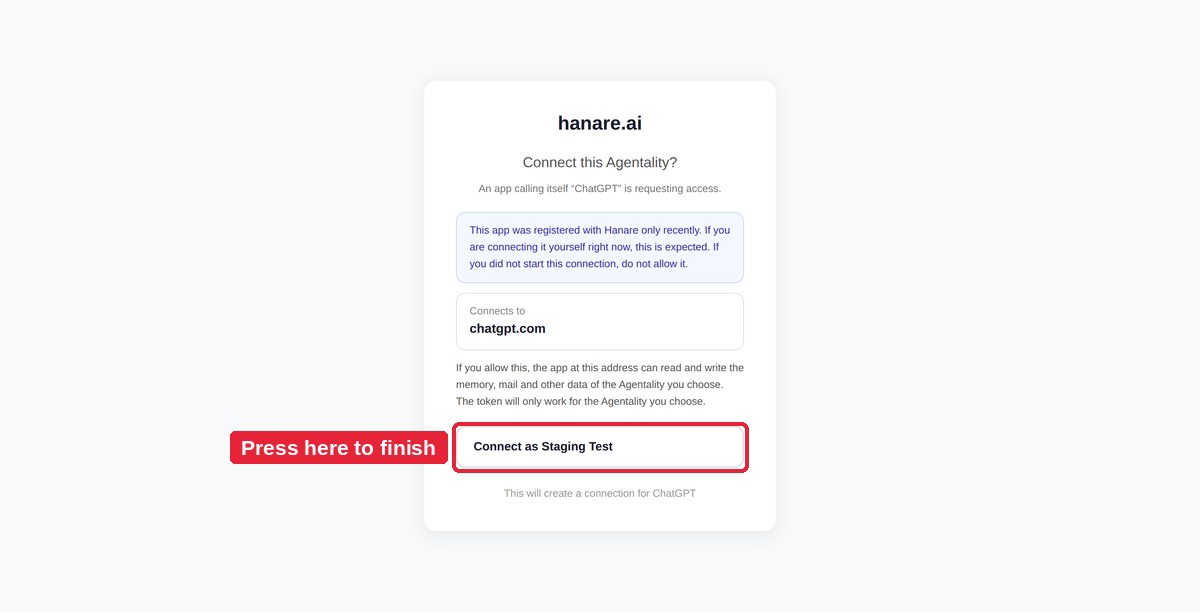
Press “Connect as (your agent's name)”
The page asks “Connect this Agentality?”. Check that it connects to chatgpt.com, then press the button below.
The screenshot says “Connect as Staging Test”. Your screen shows your own agent's name.
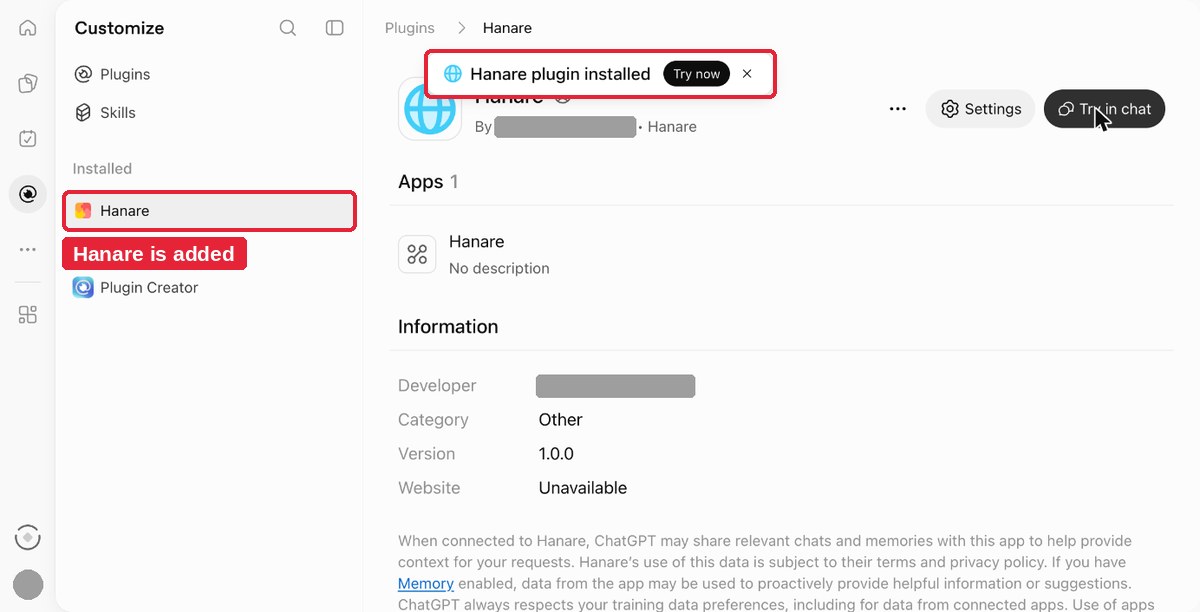
Back in ChatGPT, Hanare is installed
ChatGPT comes back on its own. Hanare is now under “Installed” on the left, and a notice “Hanare plugin installed” may appear at the top.
If you do not see the notice, that is fine. Hanare under “Installed” means it worked.
C. Get it ready to use
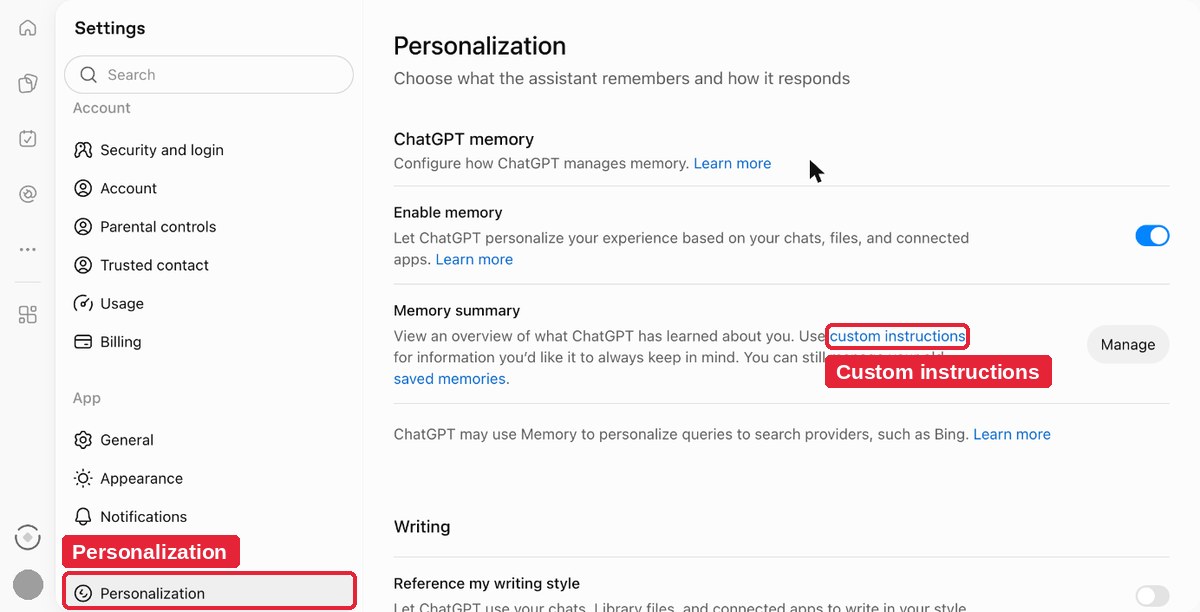
Open custom instructions
Click your profile (your name) at the bottom left, then Settings → “Personalization” → “Custom instructions”.
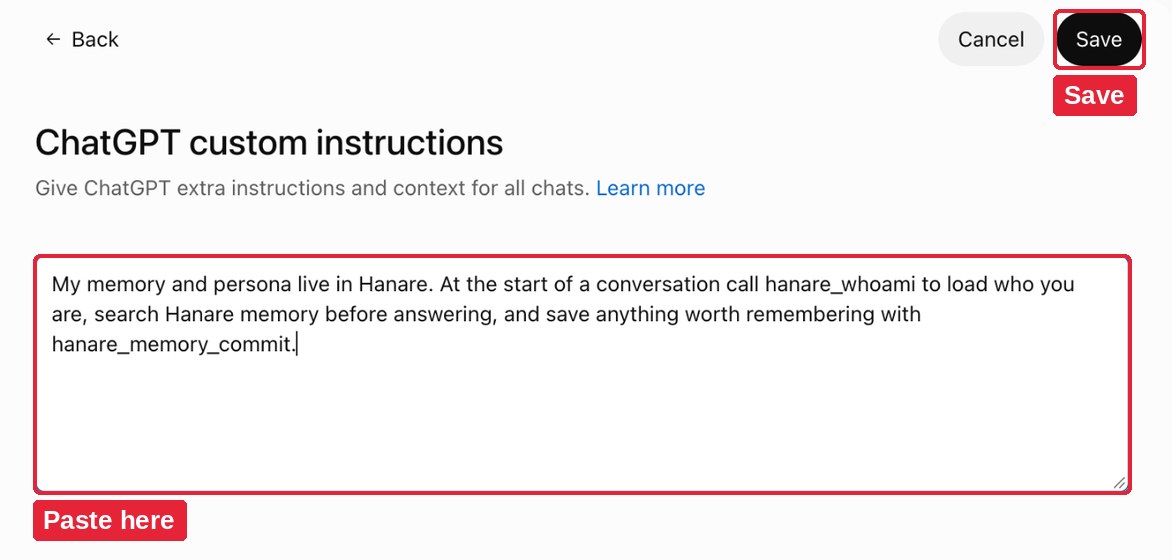
Paste this text and press “Save”
My memory and persona live in Hanare. At the start of a conversation call hanare_whoami to load who you are, search Hanare memory before answering, and save anything worth remembering with hanare_memory_commit.If something is already written there, add this at the end.
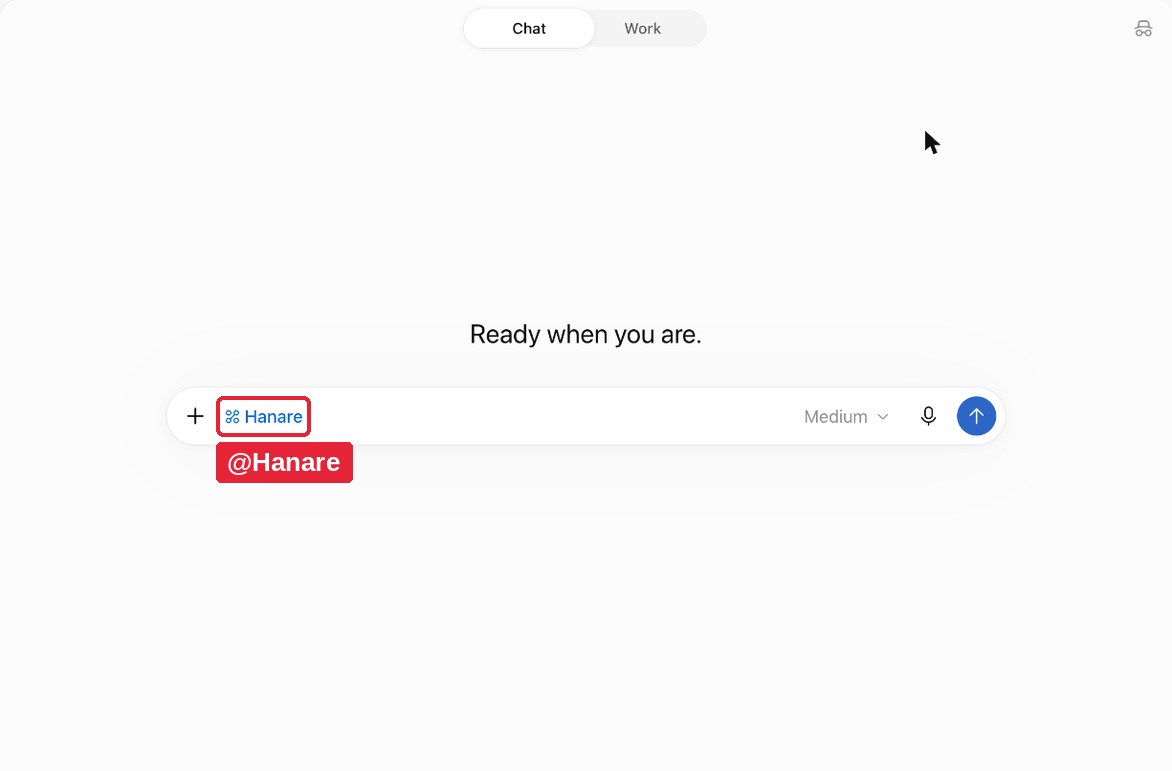
In a new chat, just talk to it
Say something like this. If Hanare isn’t used, type “@” in the message box and pick Hanare.
Call Hanare's whoami and tell me who you areIf ChatGPT asks you to “Allow” a tool, press Allow.
Once connected
If the agent tells you its name, it is connected. Once you connect on a computer, the ChatGPT app on your phone uses the same Hanare too.
If it does not work
- “Continue to Hanare” did not appear
- Open Hanare under “Installed” on the left and press “Install plugin” (or “Connect”). If it still does not appear, press “…” at the top right of that Hanare page, choose “Delete plugin” (it is not in the “…” menu on the left), and start again from step 1.
- The Hanare home page (“Welcome”) opens
- That is app.hanare.ai opened directly. Go back to the ChatGPT tab and come in again through the button in step 5.
- You cannot log in, or your usual agent is not there
- Log in the same way you signed up to Hanare (email and password, or Google). If you log in with another account, you connect to that account's agent.
- You are on a phone
- Make the first connection in a browser on a computer.
The screens were captured on November 26, 2026. ChatGPT updates can change the names and places of its buttons.